You’ll want to snag that free SSL certificate your host almost certainly offers (check your control panel’s SSL section). Activate it with one click, then update your WordPress URLs from HTTP to HTTPS in Settings > General. Install Really Simple SSL to squash any mixed content errors automatically. Set up automatic redirects from HTTP to HTTPS, verify everything’s locked down with a green padlock, and enable auto-renewal so you’re not caught off guard next year. Stick around for the specifics on each step.
Key Takeaways
- Check if your hosting provider includes free SSL certificates like Let’s Encrypt in your control panel.
- Activate SSL in your hosting control panel and update WordPress URLs from HTTP to HTTPS in Settings.
- Install an SSL plugin like Really Simple SSL to automatically fix mixed content errors across your site.
- Verify HTTPS is active by checking the green padlock and testing redirects from HTTP to HTTPS.
- Set up automatic SSL renewal through your hosting provider to prevent certificate expiration and maintain site security.
Check If Your Host Includes Free SSL
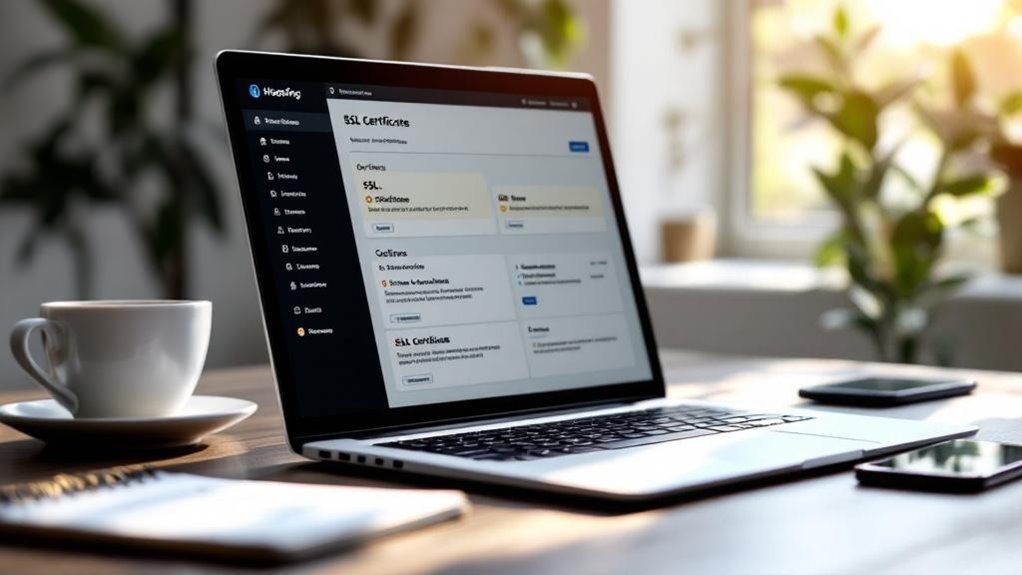
Why pay for something you might already have? Most modern hosting providers bundle free SSL certificates with their plans—seriously. Before you hunt down your wallet, check your host’s control panel (usually cPanel or Plesk). Look for sections labeled “SSL/TLS” or “Security.” Many hosts like Bluehost, SiteGround, and GoDaddy include Let’s Encrypt certificates at no charge. The importance of SSL can’t be overstated—it encrypts visitor data and boosts your Google rankings. How to check? Log into your hosting account and poke around. Email support if you’re lost (they’ll answer in minutes, usually). If nothing’s there, then you explore paid options. But honestly? You’re probably already covered. It’s one of those rare industry wins where they actually give you something useful upfront.
Choose Between Free Let’s Encrypt and Premium Certificates
So you’ve found an SSL option (or realized you already had one)—now comes the fun part: deciding which certificate actually makes sense for your situation.
Free vs premium really comes down to your site’s ambitions. Let’s Encrypt offers solid encryption at zero cost—genuinely respectable for blogs and small projects. The catch? You’ll manually renew every 90 days (though most hosts automate this now).
Let’s Encrypt delivers solid encryption free—perfect for blogs and small projects, despite the 90-day renewal cycle.
Premium certificates run $50-300 annually and include extended validation badges that whisper “trust me” to visitors. They’re overkill for hobby sites but worth considering if you’re handling payments or building brand credibility.
Honestly, free works fine. Premium’s mostly psychological reassurance wrapped in fancy packaging.
Activate SSL in Your Hosting Control Panel
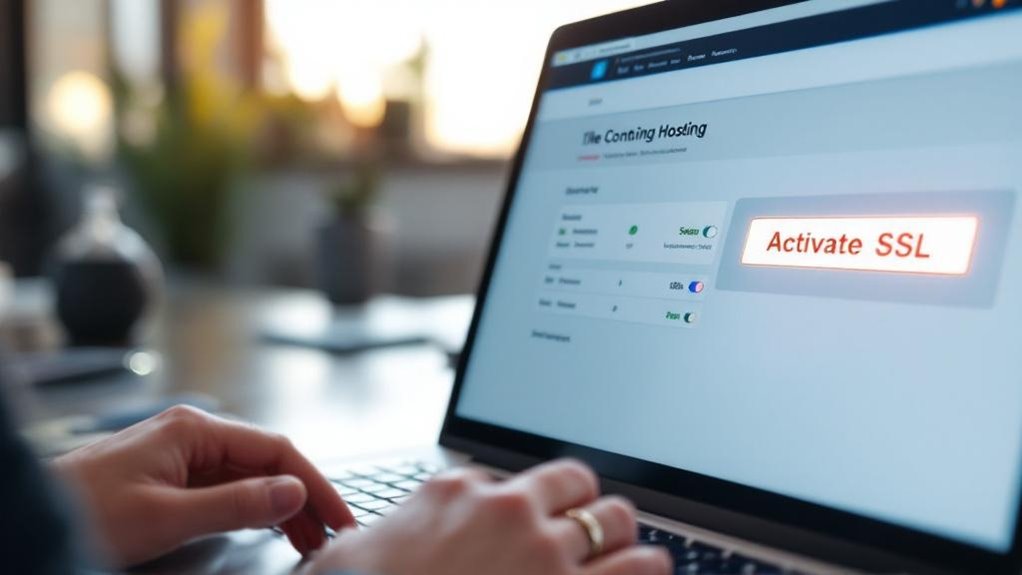
You’ll need to locate your SSL certificate in your hosting control panel—most providers (cPanel, Plesk, etc.) have a dedicated SSL section that’ll show you exactly what you’ve installed and when it expires.
Once you’ve found it, enabling HTTPS is usually a one-click affair: you’re basically telling your server “hey, use this certificate for all incoming traffic” and watching it actually work.
The payoff’s legit—your site suddenly displays that green padlock, your visitors’ data gets encrypted, and Google stops side-eyeing your search rankings (turns out browsers really do care about security, who knew).
Finding Your SSL Certificate
Before you can install that shiny SSL certificate on your WordPress site, you’ve got to actually find it first—and that means logging into your hosting control panel, which is basically the command center for everything related to your domain. Most providers (cPanel, Plesk, whatever you’re stuck with) bury the SSL section somewhere obvious once you know where to look.
| SSL Certificate Types | Issued By | Cost | Best For |
|---|---|---|---|
| Domain Validated (DV) | Major CAs | Free-$50 | Blogs, small sites |
| Organization Validated (OV) | SSL Certificate Authorities | $100-200 | Small businesses |
| Extended Validation (EV) | Trusted CAs | $200+ | E-commerce |
| Wildcard | Premium CAs | $150-300 | Multiple subdomains |
Look for “SSL/TLS Certificates” or “Security.” You’ll see your certificate listed there waiting patiently—sometimes already installed, sometimes just sitting around unemployed.
Enabling HTTPS Protocol
Once you’ve located your SSL certificate in the control panel, it’s time to actually flip the switch and activate it—and this is where things get real simple or frustratingly confusing depending on your host.
Most control panels (cPanel, Plesk, whatever yours is) have a dedicated SSL section. You’ll find your certificate sitting there, waiting. Click “Activate” or “Install”—the button’s usually obvious, thankfully.
Here’s the thing: activating SSL immediately triggers real SSL benefits. Your site locks in that green padlock, boosting user trust instantly. Visitors see you’re legitimate, not some sketchy operation.
That psychological shift matters. Your bounce rate‘ll actually improve because people feel safer entering payment info or personal details.
The activation takes seconds. Minutes, tops. You’re literally telling your server, “Hey, use this certificate now.” That’s it. Done.
Update Your WordPress Site URL to Use HTTPS
After you’ve installed that shiny new SSL certificate, your site’s still running on HTTP in WordPress’s eyes—which means your visitors will see security warnings and you’ve basically wasted the whole installation.
Head to Settings > General in your WordPress dashboard.
You’ll see two fields: WordPress Address and Site Address. Both need updating from http:// to https://.
It’s straightforward, but skip this step and you’re looking at mixed content errors (that’s where some resources load secure, others don’t—browsers hate it).
Changing URLs here tells WordPress to serve everything through your encrypted connection.
Your visitors get the green lock icon.
Search engines get happier.
You get fewer headaches.
Everyone wins.
Install an SSL Plugin to Fix Mixed Content Errors
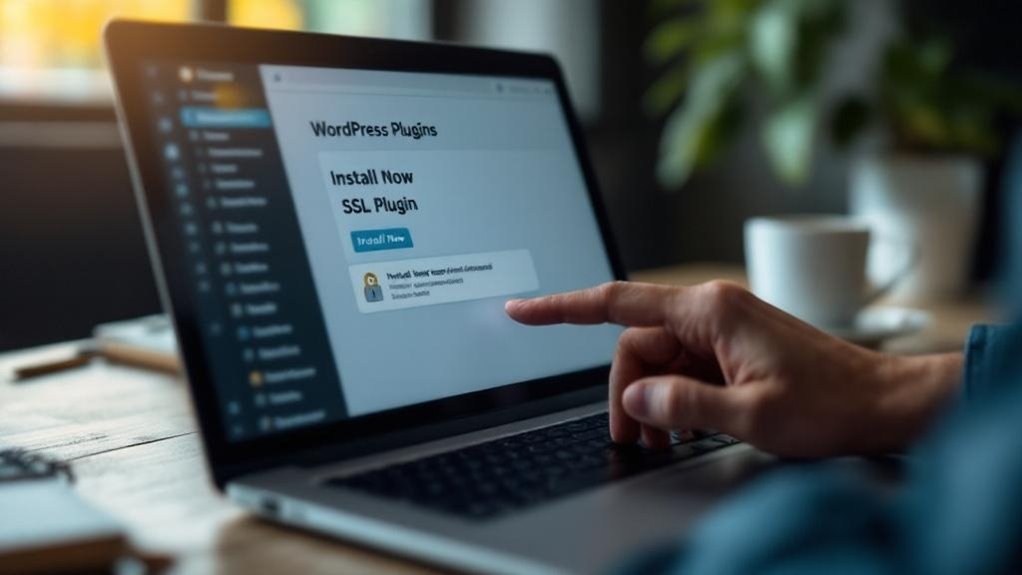
Once you’ve switched your site URL to HTTPS, you’ll likely spot mixed content errors—those annoying warnings where some resources still load over HTTP.
You’ve got solid plugin options like Really Simple SSL or WP Force SSL that automatically hunt down and fix these problems without requiring you to manually rewrite code (though honestly, they’re not perfect).
Configuring these plugins correctly means checking a few key settings—enable the automatic redirect, let it scan your database, and verify the conversion actually stuck—because rushing through setup is how you end up with a half-secured site that frustrates both you and your visitors.
Popular SSL Plugin Options
Several WordPress plugins can automatically fix mixed content errors without you having to manually update every single URL on your site.
When you’re comparing best SSL plugins and SSL plugin comparisons, you’ll notice a few standouts that actually deliver results.
Here’s what you’re looking at:
- Really Simple SSL – handles 90% of mixed content issues automatically
- WP Force SSL – forces HTTPS across your entire site with one click
- SSL Insecure Content Fixer – targets those stubborn image and script warnings
- Better Search Replace – manually updates URLs if you want precision control
- Wordfence Security – combines SSL fixes with broader security features
Most folks start with Really Simple SSL because it’s genuinely low-maintenance.
You install it, activate it, and you’re basically done. No database diving required (thank goodness).
The others work too—just depends on how much hand-holding you need.
Configuring Plugin Settings Correctly
Installing an SSL plugin is honestly the easy part—configuring it without breaking your site is where things get interesting.
You’ll want to verify plugin compatibility with your current WordPress version and active themes first (seriously, check this). Next, head to settings and enable automatic HTTPS redirects—this prevents mixed content errors that tank your SEO.
User permissions matter here too. Make sure only admins can access SSL settings; you don’t want contributors accidentally disabling certificates.
Configure your certificate renewal settings to automatic (three months before expiration works great). Test everything on a staging site before going live.
Run your homepage through an SSL checker tool to catch any remaining mixed content. These steps take 15 minutes but save you from catastrophic headaches later.
Resolve Mixed Content Warnings on Your Site
After you’ve installed SSL, you’ll probably notice something annoying: your site’s still throwing warnings about “mixed content.”
Here’s what’s happening—you’ve got HTTPS locked down, but your images, scripts, and stylesheets are still loading over plain old HTTP.
To fix this mixed content issue and tighten your content security:
- Search your database for “http://” and replace with “https://”
- Update your WordPress URLs in Settings → General
- Check your theme’s stylesheet for hardcoded HTTP links
- Scan plugins—they’re often culprits for insecure requests
- Use browser DevTools to identify remaining HTTP resources
Your visitors won’t see those annoying padlock warnings anymore.
Better yet? Search engines reward sites without mixed content warnings. It’s a quick win that actually matters.
Test Your SSL Certificate and HTTPS Redirect

You’ve done the hard work—now it’s time to actually verify that your SSL certificate is doing its job.
You’ve done the hard work—now verify your SSL certificate is actually doing its job.
Head to your website and check that the URL starts with “https://” instead of “http://” (that little padlock icon matters more than you’d think). Use free SSL verification tools like SSL Labs or Why No Padlock to identify any lingering issues.
Test your HTTPS redirect next. Visit your old http:// address—it should automatically bounce to https://.
This matters because search engines reward the HTTPS benefits: better rankings, faster loading speeds, and genuine visitor trust.
Your site’s now officially more secure, and Google notices.
Pretty solid payoff for actually finishing what you started, honestly.
Set Up Automatic Redirects From HTTP to HTTPS
While your SSL certificate is now active, visitors can still accidentally land on the old http:// version of your site—and that’s a security leak you’ll want to close.
Setting up automatic redirects protects both your visitors and your SEO impact.
Here’s how redirect strategies work:
- Add code to your .htaccess file (if you’re on Apache hosting)
- Use WordPress plugins like Redirection or Really Simple SSL
- Configure redirects through your hosting control panel
- Test every redirect with a browser tool
- Monitor your analytics for mixed content warnings
This forces everyone to the secure https:// version automatically.
You’re fundamentally eliminating user error—and Google appreciates that. Redirects preserve your rankings too, which matters way more than most people realize.
Install these now and sleep better tonight.
Set Up SSL Auto-Renewal to Stay Secure

Your SSL certificate has an expiration date—and it’s probably closer than you think.
Most certificates last just one year, which means you’ll need to renew before it lapses (trust me, an expired certificate is awkward).
The good news? You can automate this entirely.
Enable auto-renewal through your hosting provider or certificate authority. Most modern hosts handle this automatically now—one of the few SSL benefits that actually lives up to the hype.
Set calendar reminders anyway. Yes, redundancy seems paranoid, but SSL challenges include human forgetfulness.
Auto-renewal protects your site’s uptime and visitor trust. You’ll avoid that dreaded browser warning that screams your site isn’t secure.
Your SEO rankings stay intact. One less thing to panic about quarterly.
Frequently Asked Questions
What Is the Difference Between SSL and HTTPS, and Why Do I Need Both?
You don’t need both—SSL and HTTPS are interconnected. SSL’s the security protocol that encrypts your data, while HTTPS is the secure connection using SSL. You’ll benefit from SSL Benefits by implementing HTTPS Importance, protecting your site’s sensitive information.
How Long Does It Take to Install SSL on My WordPress Site?
You’ll complete your SSL installation time in 15-30 minutes. The certificate process depends on your hosting provider’s automation tools. Most modern WordPress hosts offer one-click SSL setup, dramatically reducing your installation time considerably.
Will Installing SSL Affect My Site’s SEO or Search Engine Rankings?
Installing SSL won’t harm your rankings—it’ll actually boost them. Google favors secure sites, so you’ll gain SEO benefits while improving site security. You’re making a smart move that search engines reward.
Can I Use the Same SSL Certificate Across Multiple WordPress Domains?
You’d think one certificate covers everything—ironically, it doesn’t. You’ll need multi-domain SSL or wildcard certificates. Multi-domain SSL protects multiple specific domains, while wildcard certificates cover unlimited subdomains under one domain.
What Should I Do if My SSL Certificate Expires Without Auto-Renewal?
You’ll need to manually renew your SSL certificate immediately to avoid expiration issues. Contact your certificate authority, complete the certificate renewal process, then reinstall it on your WordPress site before the current one expires completely.
Final Thoughts
You’ve now got your WordPress site locked down with HTTPS—a genuine security boost that Google rewards with better rankings. SSL setup may feel complex initially, but the payoff is worth it: protected visitor data, increased credibility, and peace of mind knowing your site is secure.
Ready to ensure your SSL installation is optimized and your site performs at its best? Contact Innovative Solutions Group today. With over 30 years of experience in website design and digital marketing services, our team can help you maximize your security investment and drive better results.
Innovative Solutions Group
Phone: 406-495-9291
Email: iteam@inovativhosting.com
Website: https://inovativhosting.com
Let our experts handle your WordPress security and digital strategy so you can focus on growing your business.