You’ve got to layer your defenses because WordPress hosts 43% of the web—making it hackers’ favorite target. Change that default “admin” username, beef up your password to 16+ characters, and limit login attempts so bots can’t just hammer away. A Web Application Firewall like Cloudflare blocks suspicious traffic before it reaches you. Add two-factor authentication and monthly plugin audits, and you’re covered. There’s definitely more tactical ground to cover, though.
Key Takeaways
- Change the default “admin” username to something unpredictable to eliminate common attack vectors targeting WordPress sites.
- Implement login attempt limiting and Web Application Firewalls like Cloudflare or Wordfence to block suspicious access patterns.
- Enable two-factor authentication on admin accounts for an additional verification layer beyond passwords alone.
- Apply rate limiting and geo-blocking to throttle automated bot requests from single sources or specific locations.
- Keep WordPress, plugins, and server software updated monthly to eliminate vulnerabilities exploited by brute force attacks.
Recognize Attack Patterns: Where Hackers Target WordPress

While WordPress powers roughly 43% of all websites, it’s also become the low-hanging fruit for attackers—and they’re not exactly subtle about where they strike. Your login page? That’s ground zero.
Hackers target the `/wp-admin` and `/wp-login.php` directories relentlessly through credential stuffing and automated bots. They’re exploiting common vulnerabilities like weak passwords and outdated plugins, which represent your primary attack vectors. Implementing login attempt limits can significantly reduce the effectiveness of these automated attacks.
Your target audience—site owners skipping security audits—makes this easier for them. They’ll hammer your credentials until something sticks, attempting unauthorized access thousands of times daily.
These exploit techniques expose your security layers systematically. Data breaches follow. The pattern’s predictable: they probe, they attack, they breach.
Understanding where they’re coming matters because knowledge becomes your first defense.
Change Your Default Admin Username and Create Stronger Passwords
The easiest way to get hacked? Sticking with “admin” as your username. Seriously. Hackers know this default setting exists, and they’re counting on your laziness.
Change that username immediately. Pick something unpredictable—nothing tied to your site name or personal brand.
Then create passwords that’d make a cryptographer nod approvingly. We’re talking 16+ characters mixing uppercase, lowercase, numbers, and symbols. Use a password manager (they’re not optional anymore).
Strong credentials aren’t just about blocking attackers—they’re foundational user education for your whole team. Everyone needs to understand why this matters. Consider limiting failed login attempts to slow down brute-force attacks and add an extra layer of protection beyond password strength alone.
Pair these changes with secure backups too. If someone breaches your site anyway, you’ll recover faster than explaining why you used “password123.”
Limit Login Attempts to Lock Out Attackers

By now you’ve locked down your credentials, but here’s the thing—a determined attacker doesn’t need to guess your password if they can try a thousand times in an hour.
Enter login attempt limiting. This straightforward security layer stops brute force attacks dead by restricting how many failed login tries anyone gets before getting locked out. You’re fundamentally building a bouncer at your login form security entrance.
| Strategy | Attempts Allowed | Lockout Duration | Best For |
|---|---|---|---|
| Moderate | 5 attempts | 15 minutes | Balance |
| Aggressive | 3 attempts | 1 hour | High-value sites |
| Relaxed | 10 attempts | 5 minutes | Low-traffic blogs |
| Custom | Your choice | Your choice | Flexibility |
Most WordPress plugins handle this automatically. They’re tracking user access controls, logging suspicious activity, and basically doing the heavy lifting while you sleep. Consider pairing login attempt limiting with a web application firewall for comprehensive protection against both brute force and other common attacks. Install one. Seriously.
Enable Two-Factor Authentication on Admin Accounts
Even if you’ve nailed everything we’ve covered so far, you’re still playing with one hand tied behind your back if you’re relying on passwords alone.
Two-factor authentication adds a second verification layer that makes breaking in exponentially harder.
You’ve got solid two-factor methods available:
- Authenticator apps like Google Authenticator or Authy generate time-based codes
- SMS text messages send codes to your phone (less secure, but better than nothing)
- Email confirmations provide backup verification when other methods fail
These authentication tools fundamentally force attackers to crack two separate locks instead of one.
Sure, it takes an extra ten seconds to log in. Worth it? Absolutely.
Sure, it takes an extra ten seconds to log in. Worth it? Absolutely.
You’re basically turning your admin account into a fortress while everyone else leaves their doors wide open.
Block Brute Force Attacks With a Web Application Firewall

A Web Application Firewall (WAF) sits between your site and attackers, using intelligent rules to recognize and block suspicious login attempts before they even reach your WordPress dashboard.
You’ll get real-time threat detection that catches patterns—like 50 failed logins from the same IP in minutes—and automatically shuts them down, which is basically a bouncer who never sleeps.
Most quality WAFs (Cloudflare, Sucuri, and Wordfence all offer solid options) learn from attack trends across thousands of sites, so you’re benefiting from a collective defense system without lifting a finger.
By implementing a WAF as part of your security strategy, you create multiple layers of defense that work together to reduce the risk of unauthorized access and hacking attempts.
How WAF Rules Work
When you’re tired of playing whack-a-mole with login attempts, a Web Application Firewall (WAF) becomes your first line of defense.
Here’s what actually happens behind the scenes:
- Pattern Recognition – Your WAF analyzes incoming traffic against known attack signatures, flagging suspicious login patterns before they reach your WordPress site.
- Rate Limiting – It throttles requests from single IP addresses, stopping automated bots dead in their tracks.
- Geo-Blocking – You can restrict access by location, which cuts off attackers before they even knock.
Different WAF types handle these rules differently. Security plugins like Wordfence provide comprehensive WAF suites that combine multiple protection methods into a single tool.
Cloud-based solutions offer better WAF performance without server strain, while traditional setups demand more WAF configuration.
Smart WAF features adapt to your site’s actual traffic.
The payoff? You’ll sleep better knowing your login page isn’t drowning in garbage requests.
Real-Time Threat Detection
While WAF rules give you the blueprint for defense, real-time threat detection is what actually stops attackers mid-swing. You’re getting constant real-time monitoring that catches suspicious login attempts before they spiral into full-blown attacks.
Here’s how it works: the system analyzes incoming traffic instantly, flagging patterns that scream “bot” or “brute forcer.” Multiple failed logins from the same IP? Blocked. Weird geographic location suddenly accessing your admin panel? Caught.
This threat analysis happens in milliseconds—faster than you can refresh your browser. You’re not waiting for reports or hoping your password survives the onslaught.
The WAF’s actively defending your site right now, learning from each attempt and adapting its response. It’s like having a bouncer who never sleeps and remembers every troublemaker’s face.
Harden Your WordPress Installation: Version Updates and Plugin Maintenance
You’ve got to keep WordPress core and your plugins updated—seriously, it’s like leaving your front door ajar while advertising that you’re out of town.
Outdated software is basically an engraved invitation for attackers, since hackers specifically target known vulnerabilities that patches have already fixed.
Running regular security audits on your plugins (checking for abandoned ones, outdated code, and sketchy permissions) takes maybe thirty minutes monthly but saves you the nightmare of a compromised site.
Additionally, ensuring that your web server, database, and other software are also kept up-to-date creates a comprehensive security foundation that prevents attackers from exploiting vulnerabilities across your entire hosting environment.
Keep WordPress Core Updated
Because WordPress powers roughly 43% of all websites, it’s also a massive target for hackers—and they’re actively exploiting outdated versions.
You’ve got to stay on top of WordPress updates religiously. Here’s why it matters:
- Security patches fix known vulnerabilities that attackers already know about
- Performance improvements make your site faster and more reliable
- New features give you better tools for managing your site safely
When you skip updates, you’re basically leaving your front door open.
WordPress releases updates frequently—sometimes weekly—specifically to patch security holes. Your hosting dashboard usually offers one-click updates, making this embarrassingly easy.
Regular updates also protect your website from security vulnerabilities and data breaches that can compromise your business and customer information. Delayed updates? That’s how breaches happen. Don’t be that person.
Regular Plugin Security Audits
Plugins are where WordPress security gets messy—and not in a fun way. You’re fundamentally inviting third-party code into your site’s foundation, which means vulnerabilities can slip through faster than you’d think.
That’s why regular vulnerability assessments aren’t optional—they’re essential. Run security plugins like Wordfence or Sucuri monthly to scan for weak spots. Check your plugin developers’ update history (seriously, look at it). If they haven’t patched anything in six months, that’s a red flag.
Audit abandoned plugins especially; they’re brute force attackers’ favorite entry points. Remove anything you’re not actively using. Yes, even that one plugin you installed two years ago “just in case.” Deactivating unused plugins significantly reduces potential security vulnerabilities and weakens the attack vectors available to malicious actors.
Your attack surface shrinks dramatically when you’re ruthless about plugin management.
Obscure Your WordPress Version and Admin Login URL

While most attackers use automated bots that fire off thousands of login attempts per minute, they’re also scanning your site for easy identifiers—like your WordPress version number splashed across the source code or the default `/wp-admin/` login URL.
You’re basically handing them a roadmap.
Here’s what you can do:
- Hide your WordPress version by removing it from headers and feeds using code snippets or plugins.
- Implement a custom login URL—change `/wp-admin/` to something like `/mysecureportal/` so bots can’t find it.
- Enable version masking to display fake version numbers, confusing automated scanners.
These moves won’t stop determined attackers, but they’ll eliminate low-hanging fruit. Since local search queries demonstrate how even criminals exploit easily discoverable information about your business, obscuring your site’s identifiers follows the same principle of reducing your attack surface. Most bots move on when targets look complicated. You’re not being paranoid—you’re being practical.
Track Login Attempts and Get Instant Security Alerts
Obscuring your login URL and hiding your version number might slow down the script kiddies, but here’s the thing—you still need eyes on what’s actually happening at your login page. That’s where monitoring tools come in.
You’ll want alert systems that notify you instantly when suspicious activity occurs. Tools like Wordfence or Sucuri track login attempts in real-time, showing you exactly who’s trying to break in and from where.
You’re getting notifications straight to your phone or email—not hours later when damage is done. These systems log failed attempts, flag patterns, and help you spot attacks before they succeed.
Pairing these monitoring tools with strong password policies and regular security audits ensures you’re addressing vulnerabilities comprehensively across your entire WordPress installation.
It’s like having security cameras at your front door (except these actually work). Real visibility beats assumptions every single time.
Select a Security Plugin: Essential Features and Evaluation Checklist
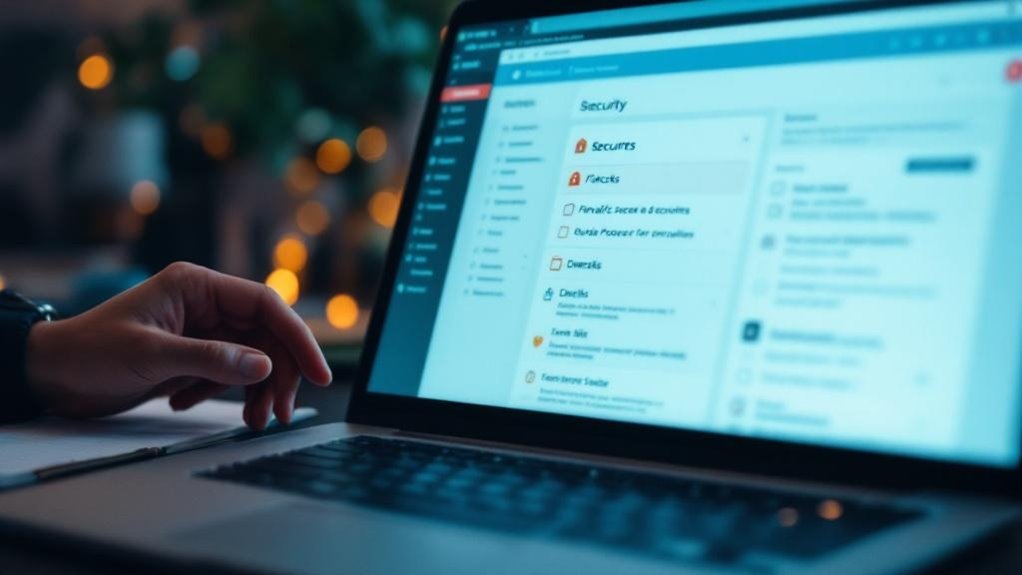
Three critical features separate a security plugin that actually works from one that just takes up space on your dashboard.
You’ll want to evaluate each candidate ruthlessly during plugin evaluation.
Look for these non-negotiables:
- Brute force protection – Genuine IP blocking after failed login attempts, not just basic rate limiting.
- Real-time security alerts – Instant notifications when suspicious activity hits your site (you’ll catch problems before they spiral).
- Automatic malware scanning – Daily scans that don’t tank your site’s speed.
Here’s the thing: most security features sound impressive until you check their actual implementation.
Does it block the attack vectors you’re actually vulnerable to?
Can you customize the sensitivity without creating false alarms?
The best plugin matches your specific threat profile, not generic checkbox features.
Test drive the free versions first—they reveal whether you’re buying genuine protection or expensive theater.
Frequently Asked Questions
What Is a Brute Force Attack and How Does It Specifically Target WordPress Sites?
You’re vulnerable when attackers use brute force techniques, rapidly guessing login credentials. They target WordPress sites because you expose standard admin panels, making password security critical for protecting your accounts.
Can I Recover My WordPress Account if Hackers Successfully Breach It?
Yes, you can recover your breached account like a ship’s captain reclaiming the helm. You’ll reset your password recovery options and strengthen account security immediately through your hosting provider’s tools.
How Do I Know if My WordPress Site Is Currently Under Attack?
You’ll spot attack indicators by checking your security logs for multiple failed login attempts, unusual IP addresses, and suspicious activity spikes. Monitor your site’s performance drops and unexpected admin account creations too.
What’s the Difference Between Security Plugins and Web Application Firewalls?
Like comparing a lock to a fortress, security plugins you’ll install directly into WordPress offer targeted features, while web application firewalls act as external gatekeepers. Your plugin comparisons reveal plugins handle specific vulnerabilities; firewalls filter all traffic before it reaches your site.
Does WordPress Hosting Provider Offer Built-In Brute Force Attack Protection?
You’ll find that many WordPress hosting providers do offer built-in brute force protection as part of their hosting security features. However, protection levels vary greatly between providers, so you should verify what’s included with your specific plan.
Final Thoughts
You’ve now got the toolkit to actually stop these attacks instead of just hoping they don’t happen. Two-factor authentication, login limits, a solid security plugin—they’re not sexy, but they work. Sure, it takes some effort upfront. But wouldn’t you rather spend 30 minutes hardening your site than dealing with a compromised WordPress installation? Your future self will thank you.